Active Journeys: Tracking Your Customer’s Path to Success
Why You Need Active Journeys In any business, every person is on a unique path. Some are "New Leads" just starting out, while others are "Active Clients" in the middle of a project. Without a visual way to see where everyone stands, it’s far too easy for people to be forgotten in the shuffle.
We built the Active Journeys feature in The Pondo (our Pondocean system) to replace messy notebooks and spreadsheets with a "bird’s eye view" of your entire operation. It turns your to-do list into a visual board where you can see exactly who needs attention and move them toward the finish line with a simple drag-and-drop.
How to Access Your Active Journeys
You can manage these journeys from your office or while out in the field.
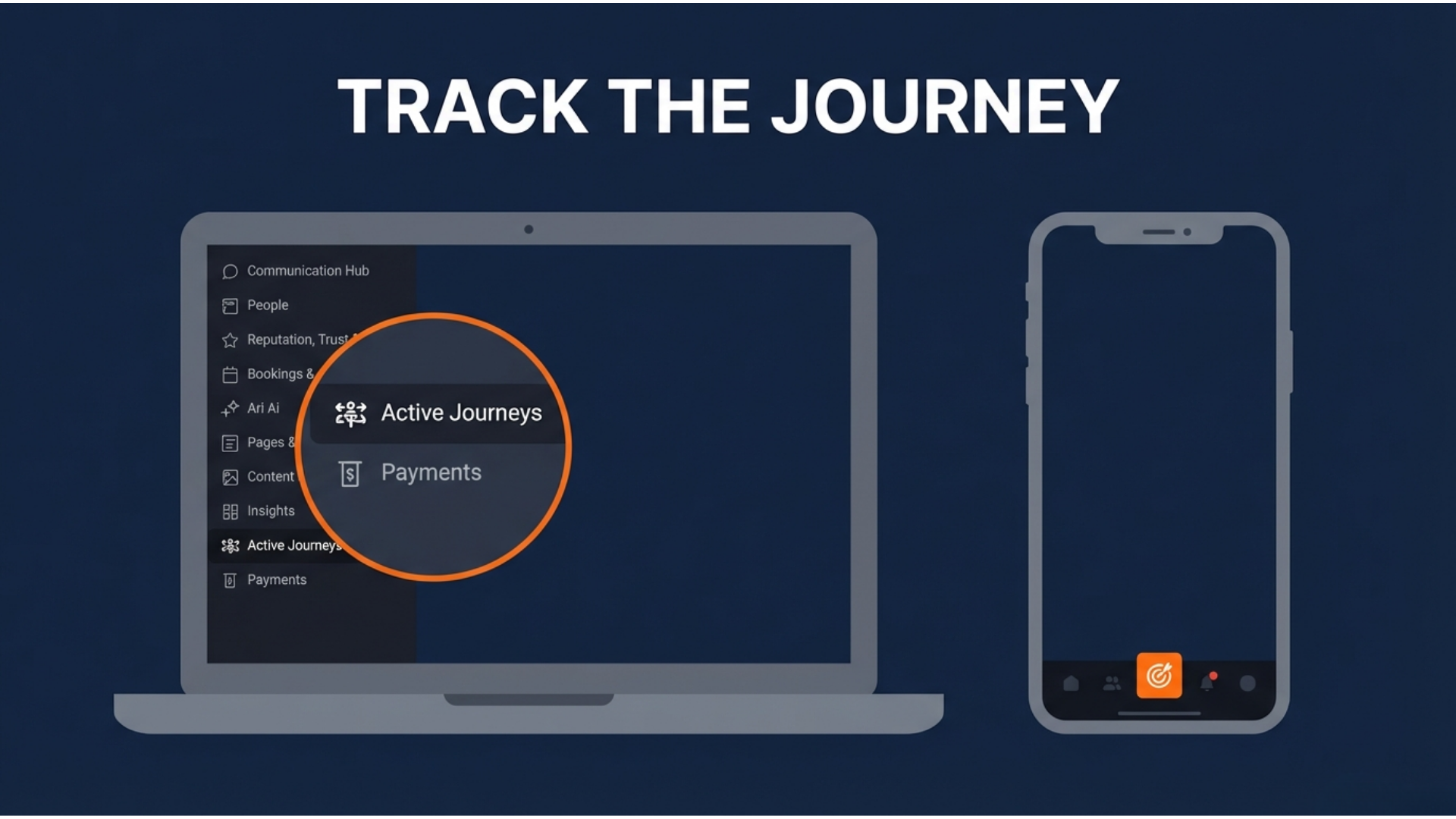
On your Desktop: Look at the left-hand sidebar menu and click on Active Journeys. (It has an icon that looks like a group of people with arrows).
On your Phone: Open the Lead Connector app and tap the Target/Graph icon at the bottom (labeled "Opportunities" or "Active Journeys").
Navigating Pipelines and Stages
Once you click into Active Journeys, you will see your Pipelines and Opportunities.
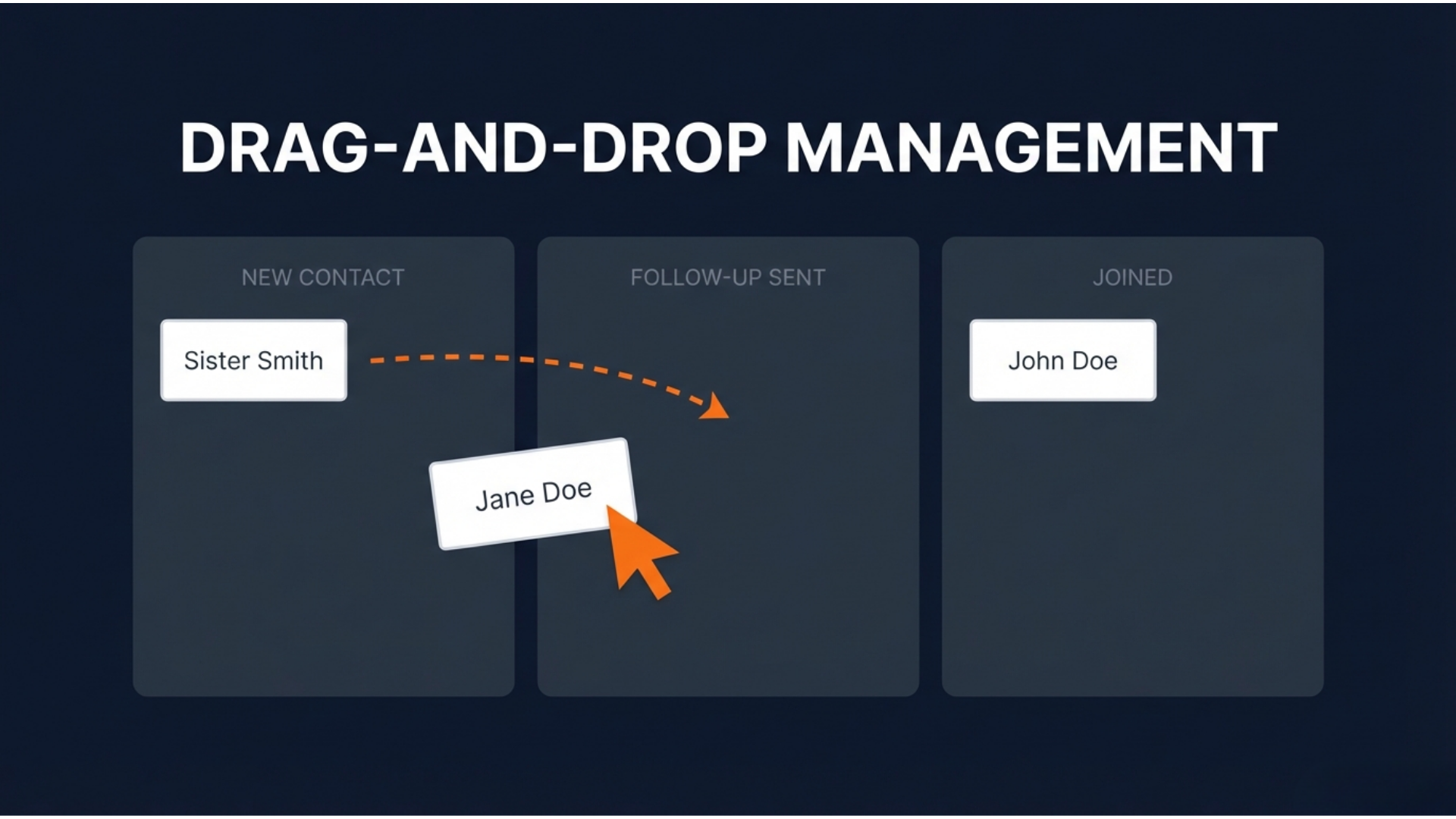
The Visual Board (Stages): Your board is divided into columns called Stages. Each column represents a specific step in your process, such as New Contact,Follow-up Sent, or Visited.
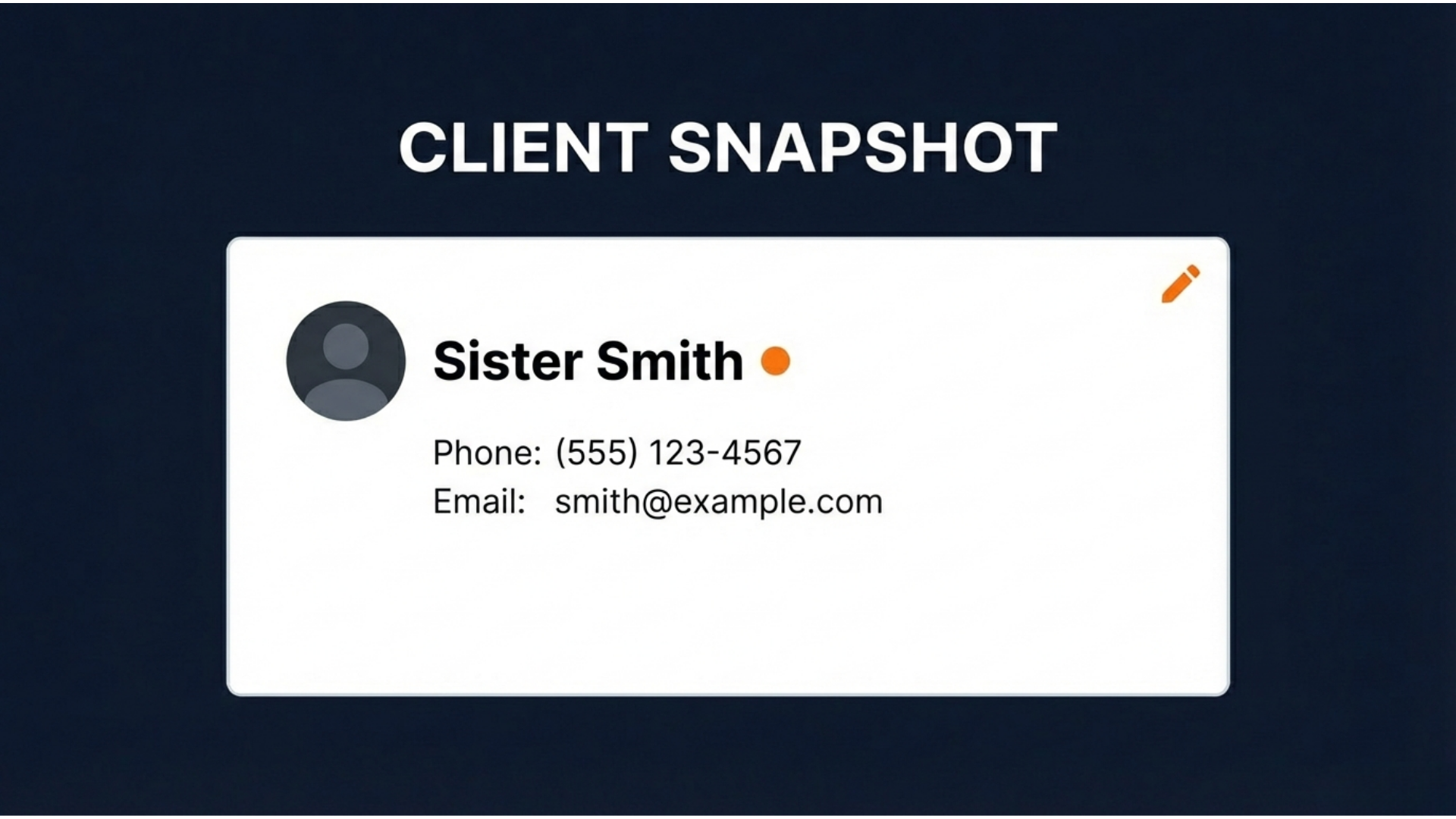
Journey Cards: Every person is represented by a "Card" containing their name and contact details.
Switching Boards: If you manage different types of journeys (like one for "New Leads" and another for "Current Projects"), use the dropdown menu at the top of the screen to switch between different Pipelines.
Updating a Journey (Moving Cards)
As a person progresses through your business process, you simply move their card to keep the whole team updated in real-time.
Desktop: Click and hold the person's card, drag it to the next column, and let go.
Mobile: Tap and hold the card, then slide your finger to move it to the new stage.
Winning the Journey: If someone completes their goal (like officially joining or making a purchase), drag their card to the Green "Won" area at the bottom of the screen.

Managing the Details: Tasks & Notes
To make sure nothing is missed, you can manage specific actions directly from a person's Journey Card.
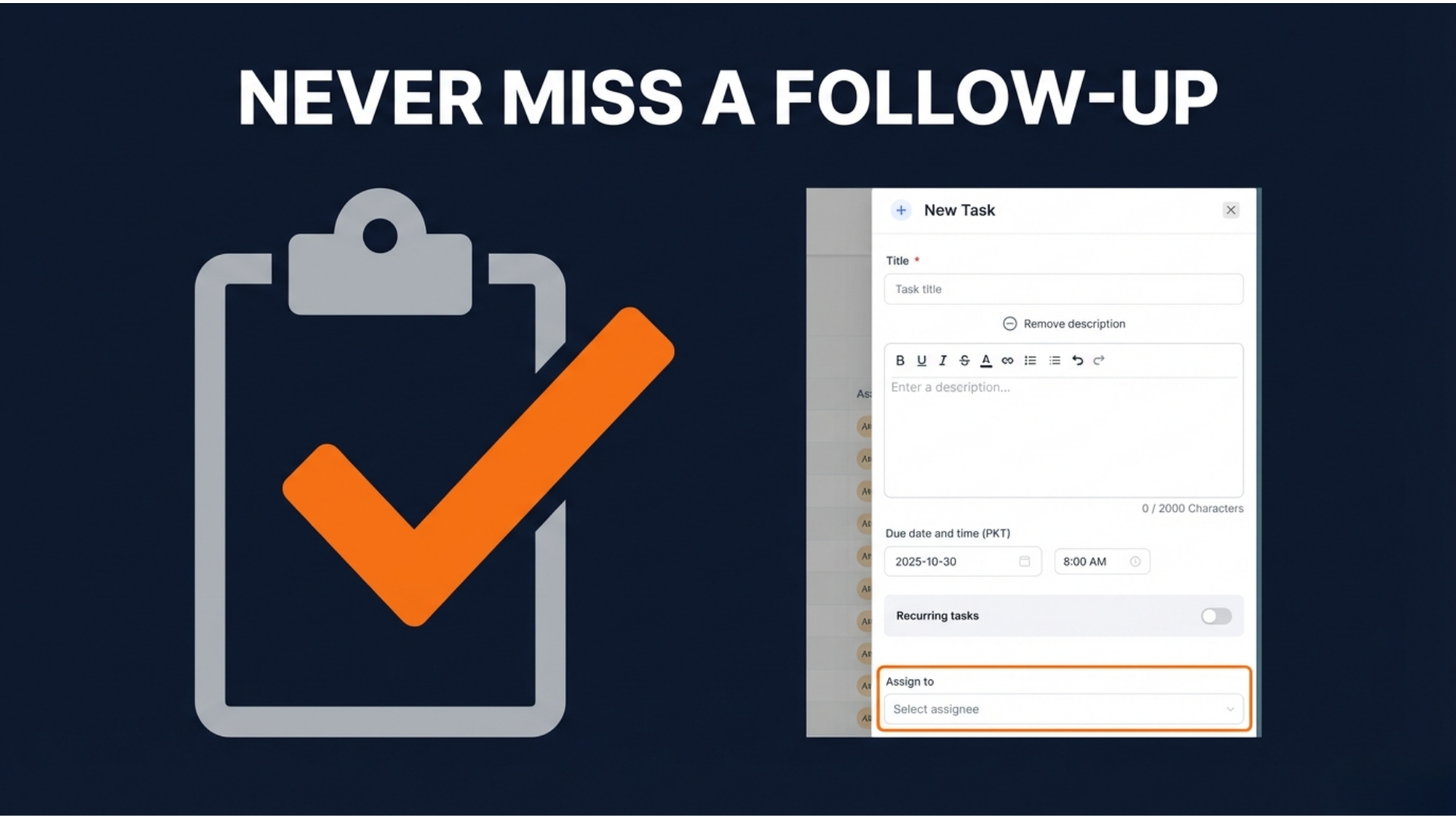
How to Add a Task: Click on the person’s name on their card to open their profile. On the right side of the screen, click the Tasks tab and then + Add Task.
Assigning Work: Type your instruction (e.g., "Call to confirm meeting"), select a staff member to handle it, and set a due date.
The Right Side Command Center: Clicking the card also lets you see the Right-Hand Sidebar, where you can check their Tags or leave a detailed Internal Note about their progress.
A Simple Summary for the "Non-Techie"
Active Journey = A visual map of your business process, like a game board.
Column/Stage = Where a person currently stands in that process.
Dragging a Card = Updating their status as they move to the next step.
Tasks = Digital reminders for your staff to take a specific action.
