Welcome to Your Digital Community — How to Get Started
Why You’ll Love This Hub
Running a successful business means staying connected without getting lost in endless email threads. We’ve built this space so you can chat with your team, find your training materials, and see important updates all in one spot. It’s your new "Headquarters" where everything is organized, secure, and easy to find.
Step 1: Arriving at the Front Door
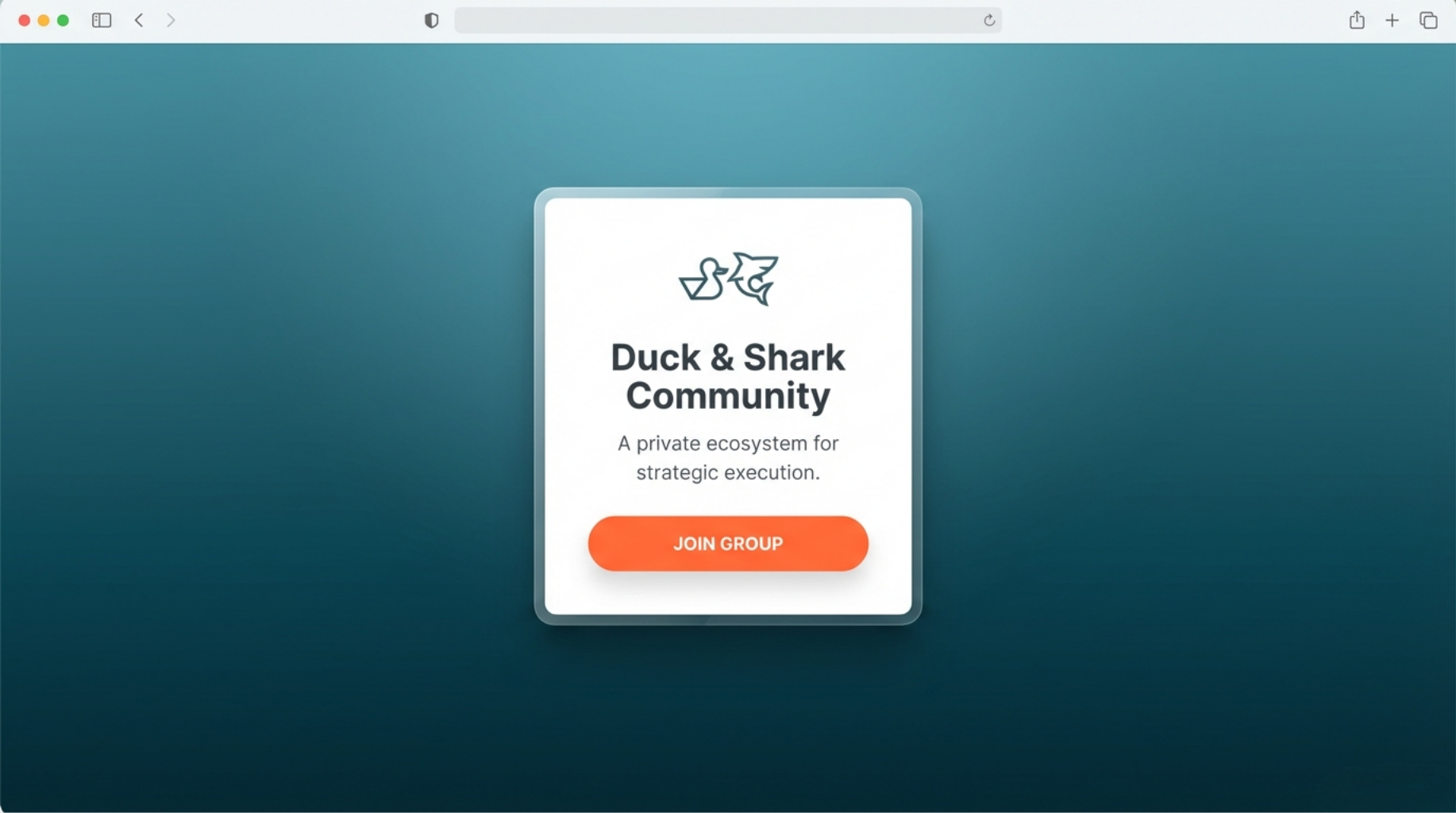
To get started, simply click the invitation link we sent you.
The Link: Open this on your computer browser.
The Welcome Page: You’ll see a beautiful preview of your new community. This is the "Front Door" to your private workspace.
Step 2: Creating Your Account
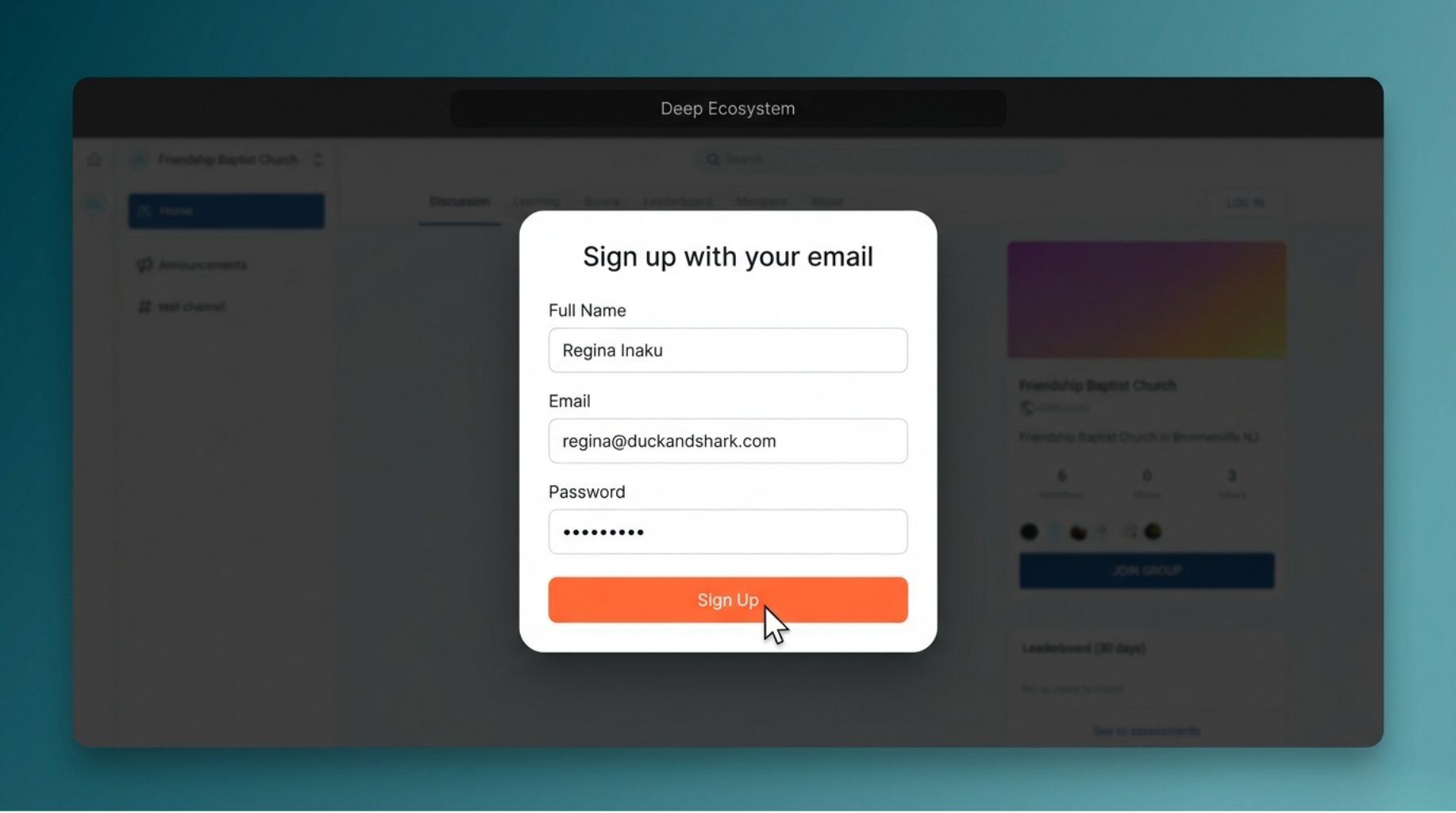
Once you’re at the door, the system needs to know who you are so it can let you in.
Your Info: Type in your Full Name, Email, and a Password you’ll remember.
Submit: Click the "Sign Up" button. It’s that simple!
Step 3: The Secret Security Code
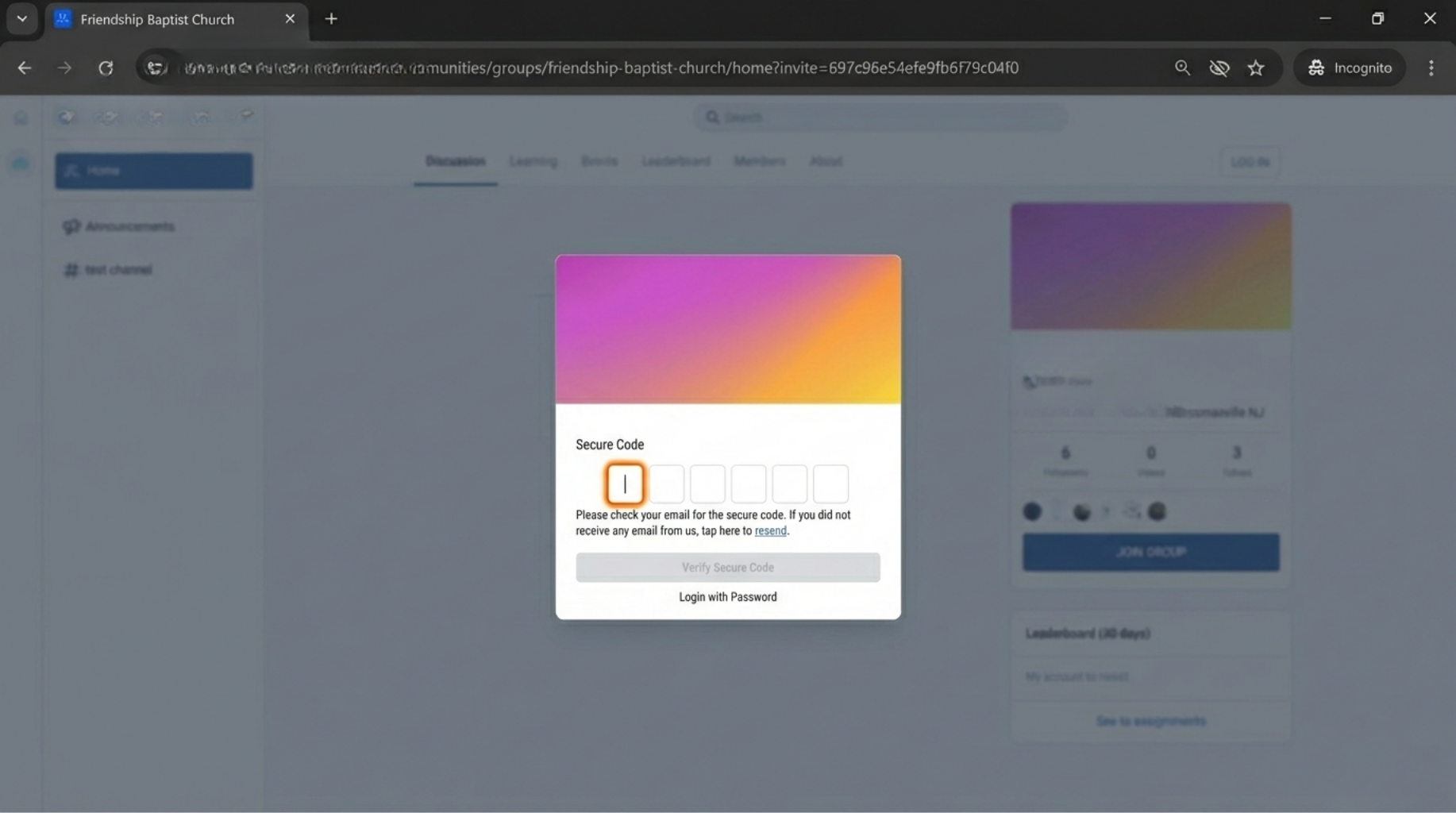
To keep your community safe and private, we use a quick security check.
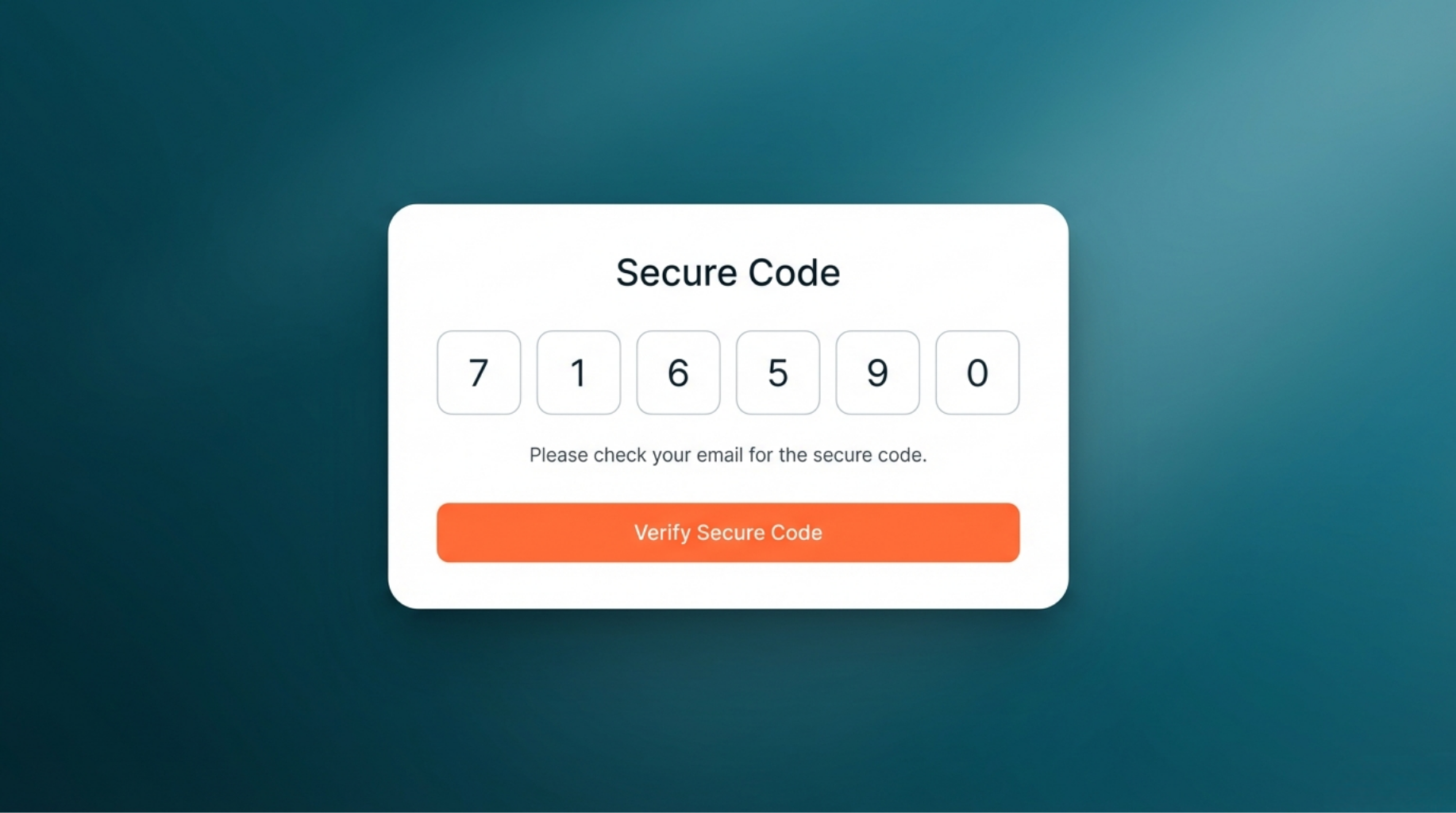
Check Your Email: You’ll receive a 6-digit "Secret Code."
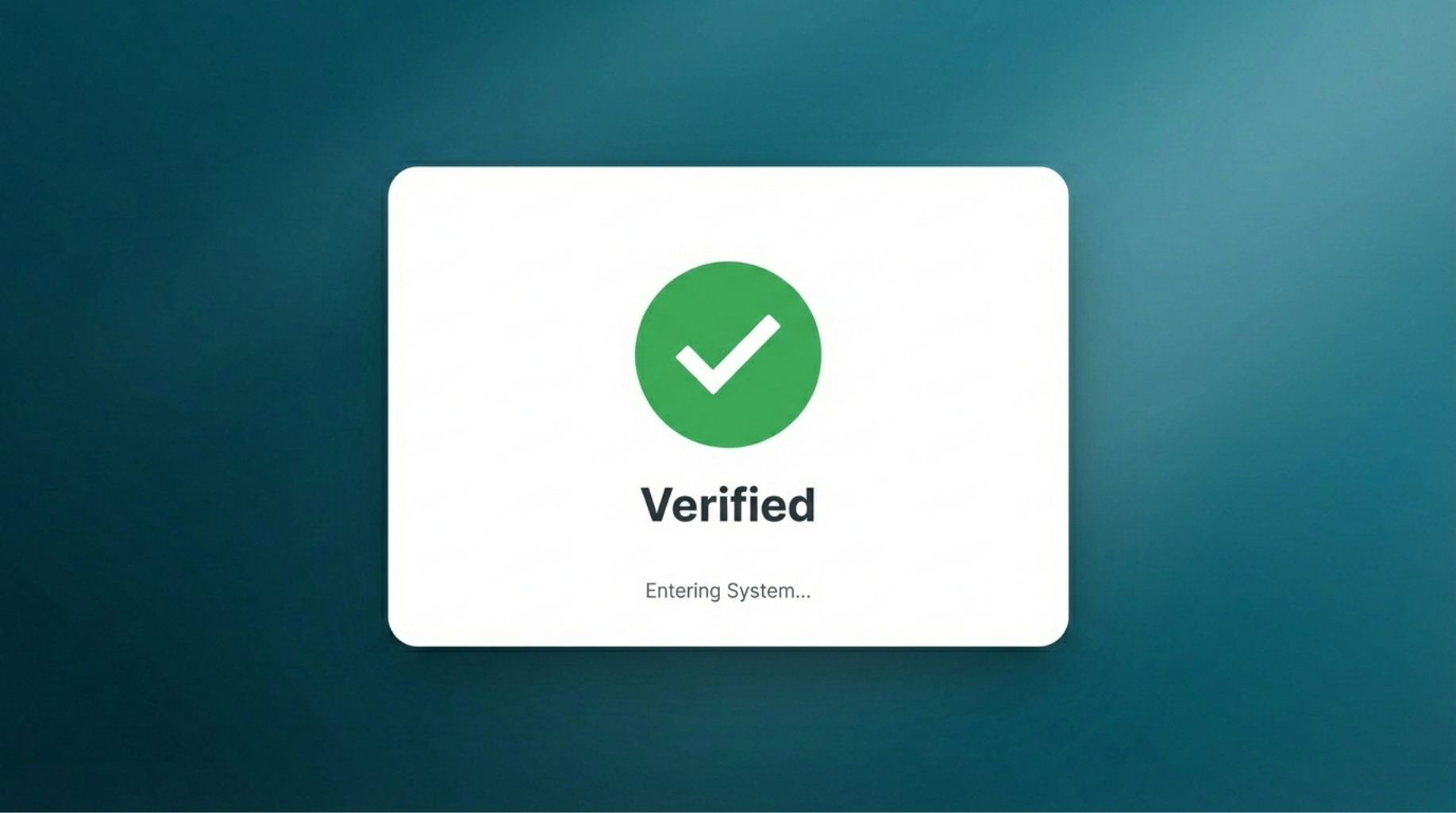
Verify: Type that code into the boxes on your screen and click Verify. This confirms it’s really you!
Step 4: Putting a Face to the Name
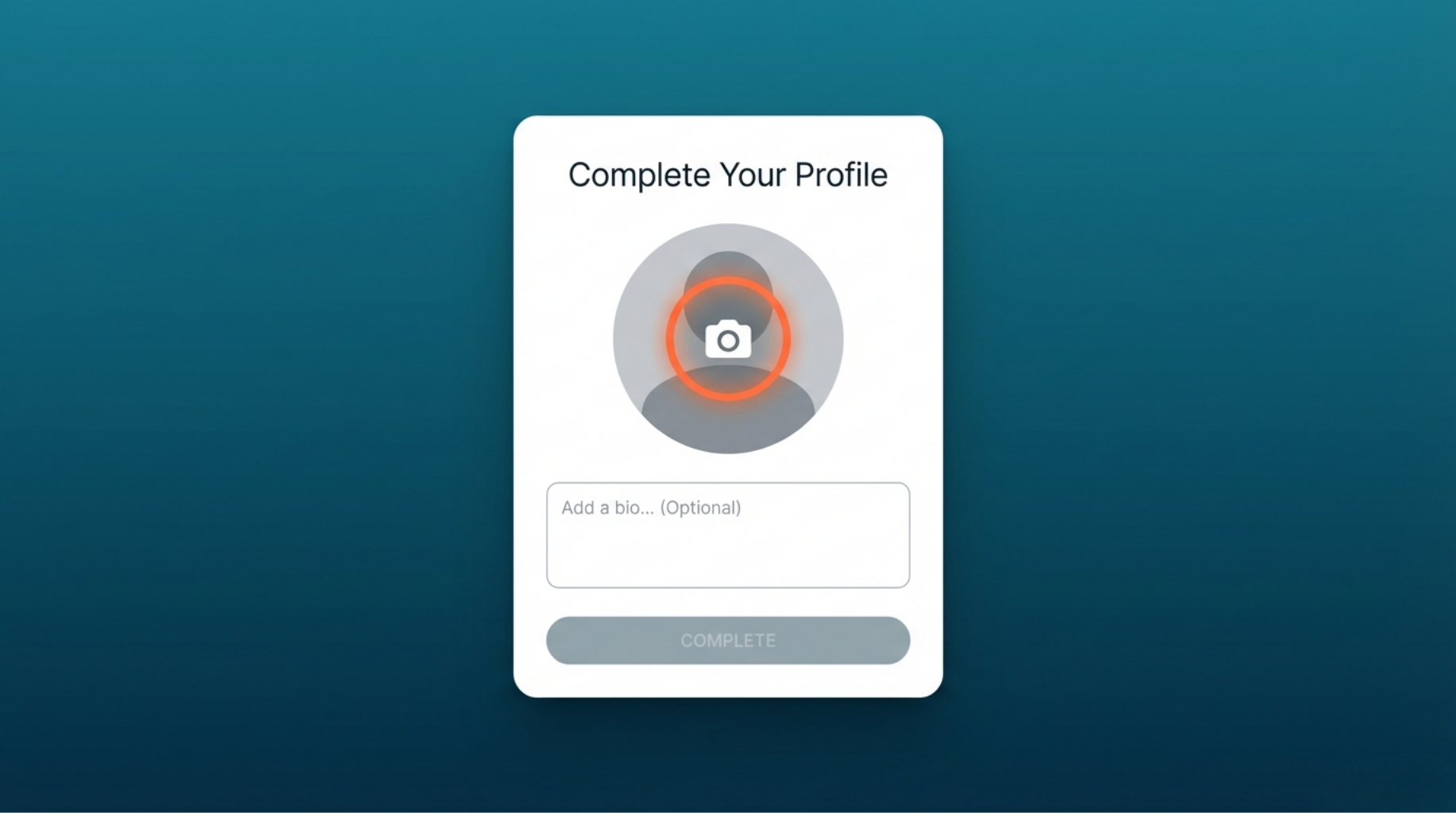
Now that you’re in, let’s make you look good! Setting up your profile helps everyone know who they are talking to.
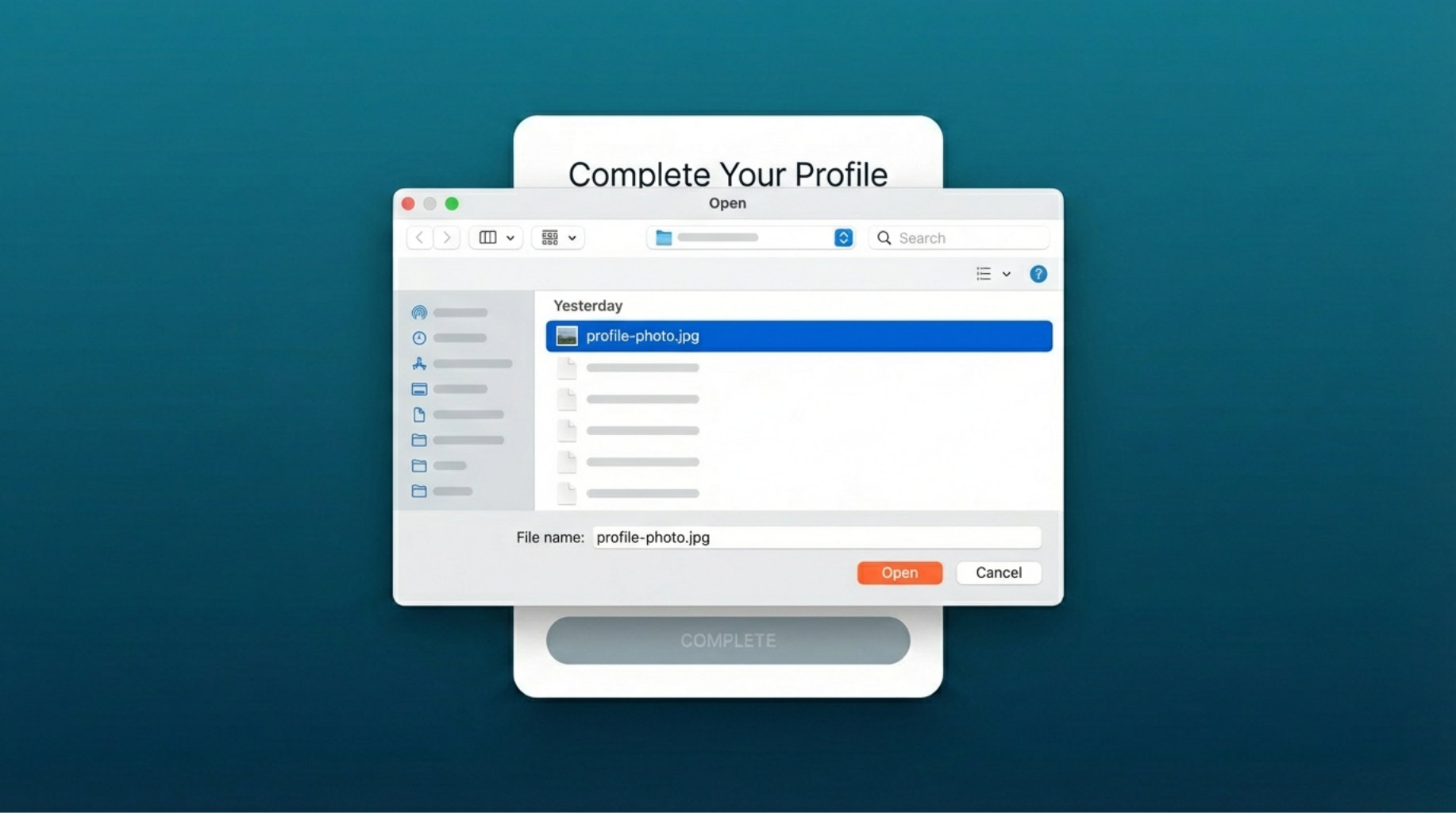
Add a Photo: Click the Camera Icon to pick a photo from your computer.
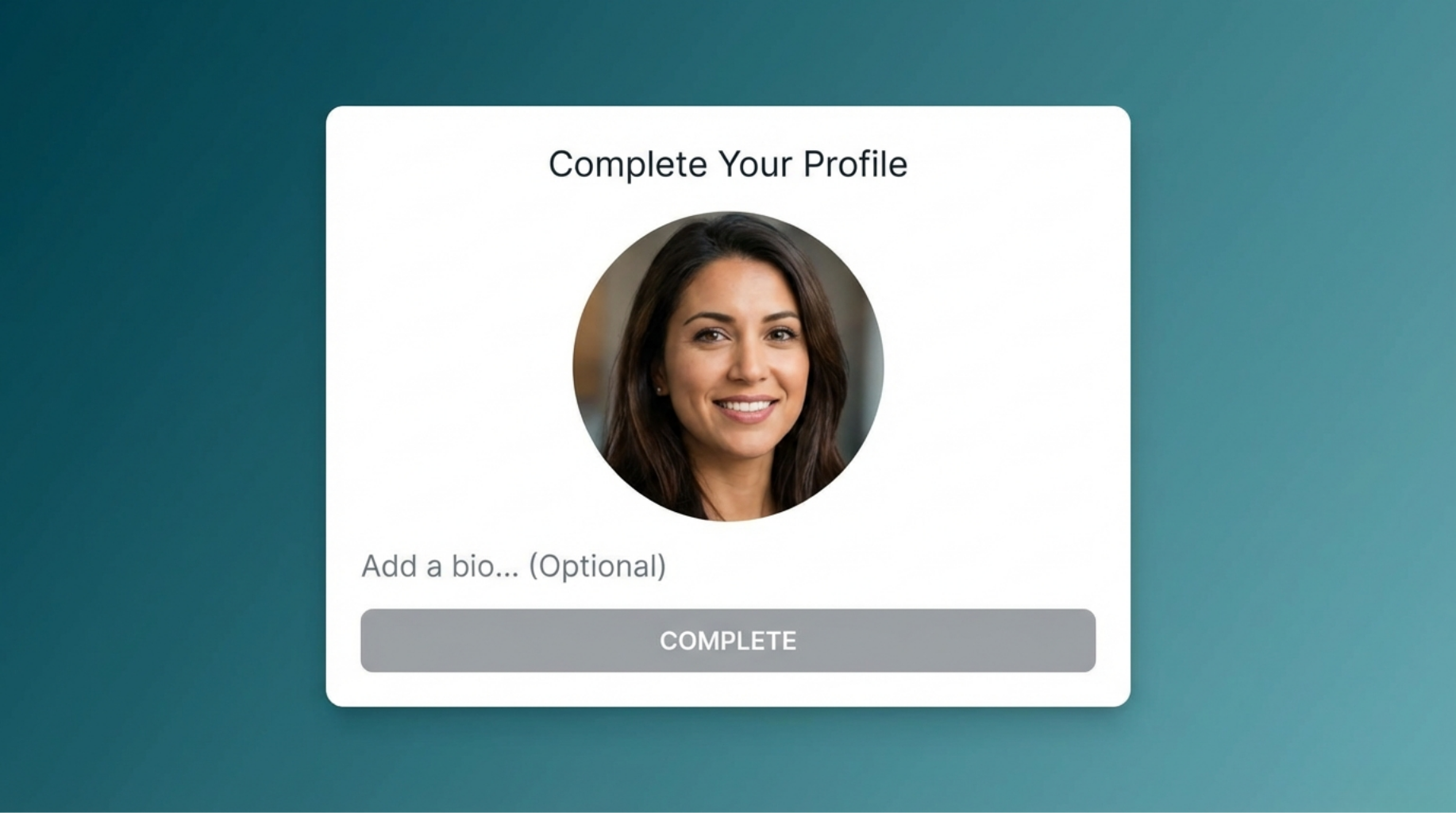
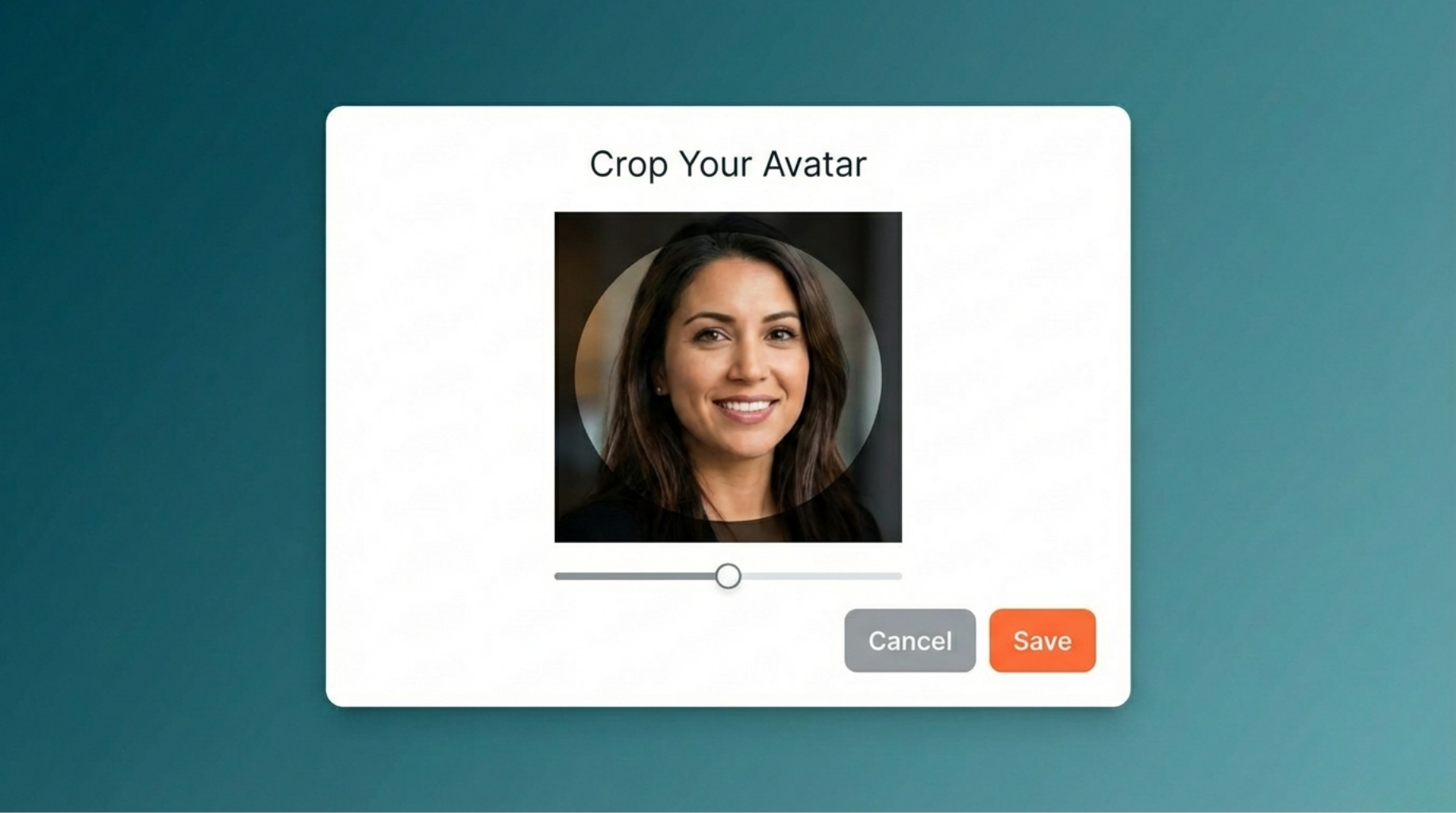
Make it Perfect: Use the tool to move or zoom your photo so your face is centered, then hit Save.
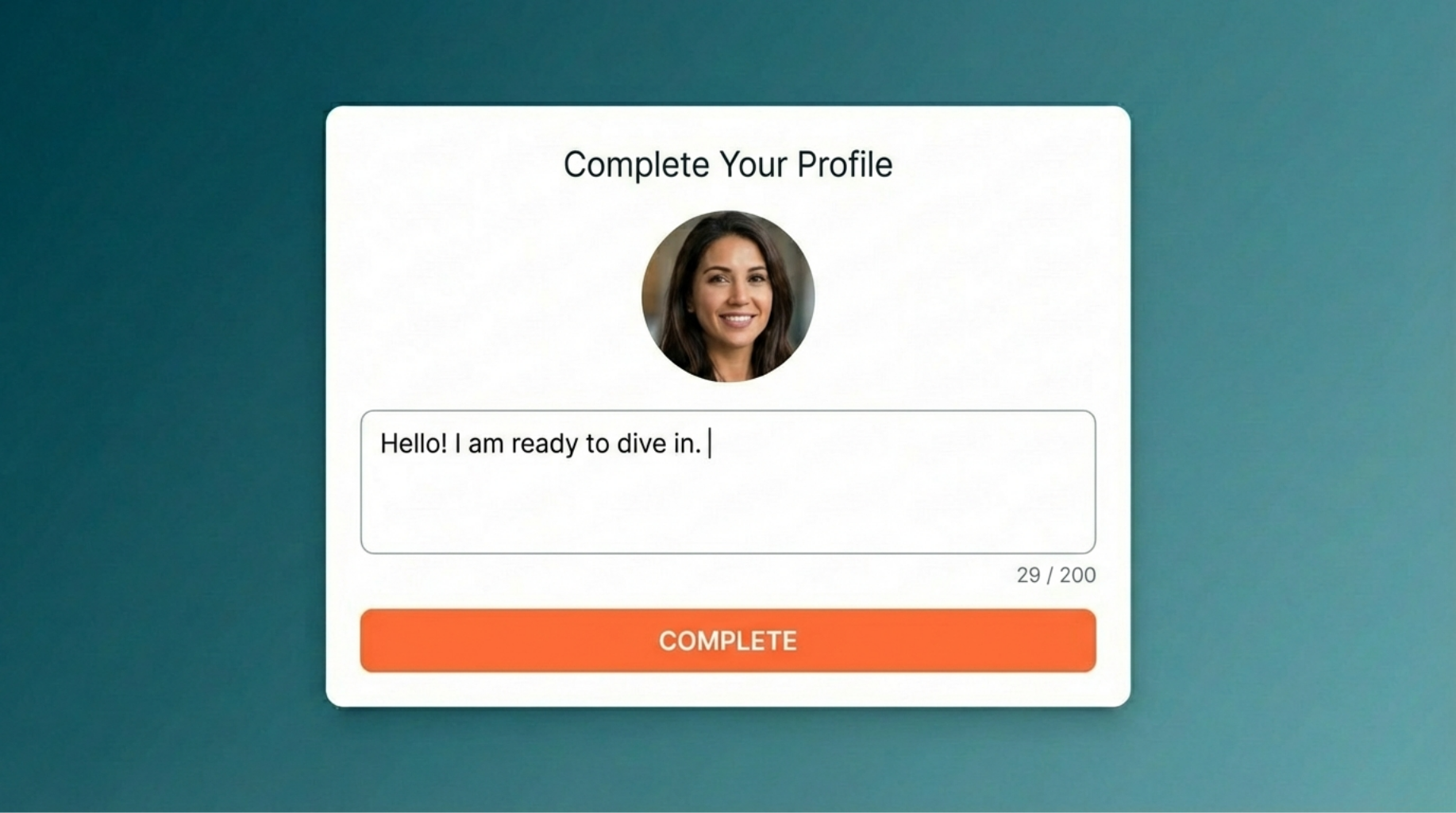
Say Hello: Type a quick sentence about what you do in the "Bio" box.
Done: Click Complete to enter your new home.
Step 5: Updating Your Info Later
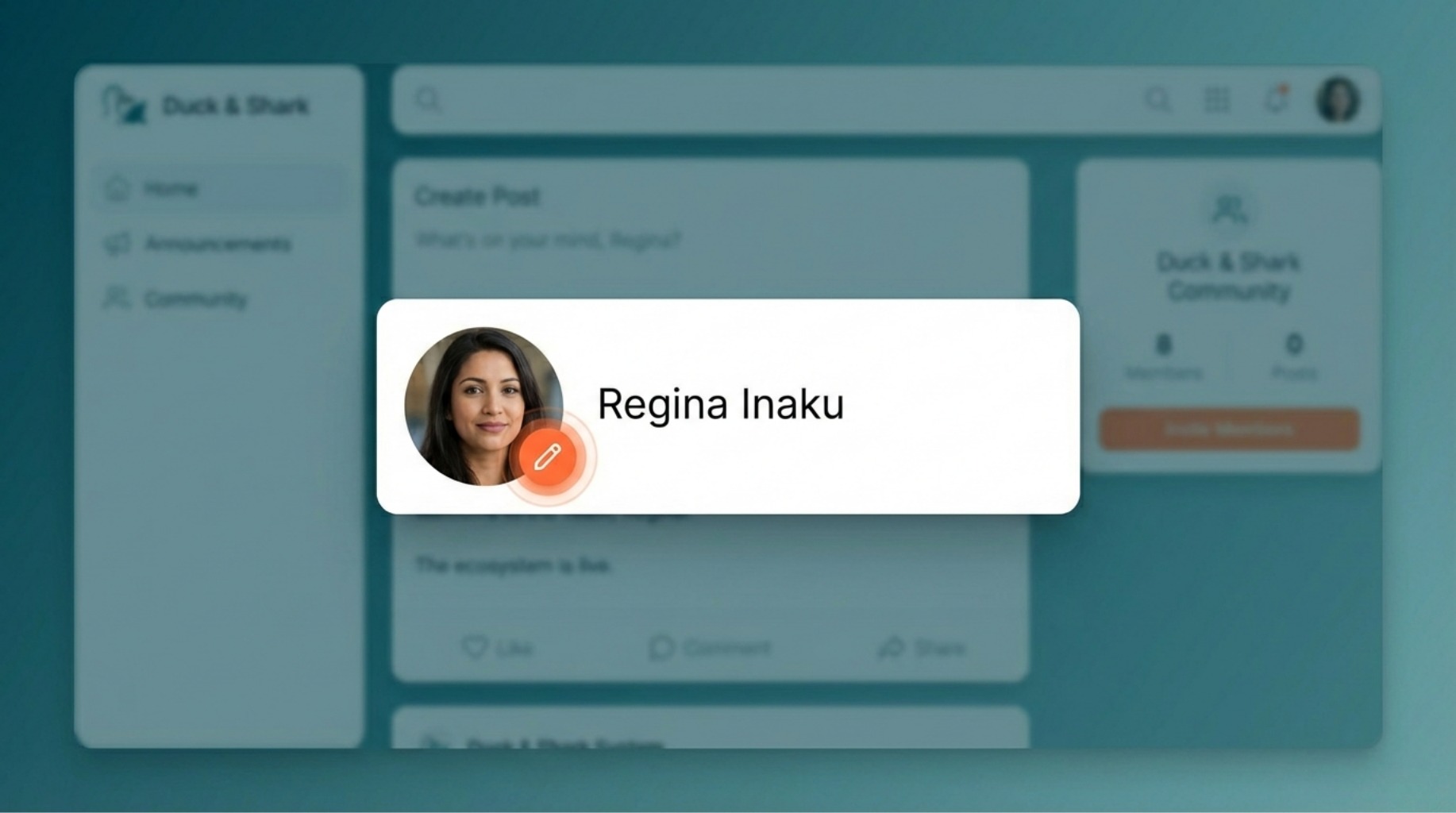
Changed your mind about your photo? No problem! You can change anything at any time.
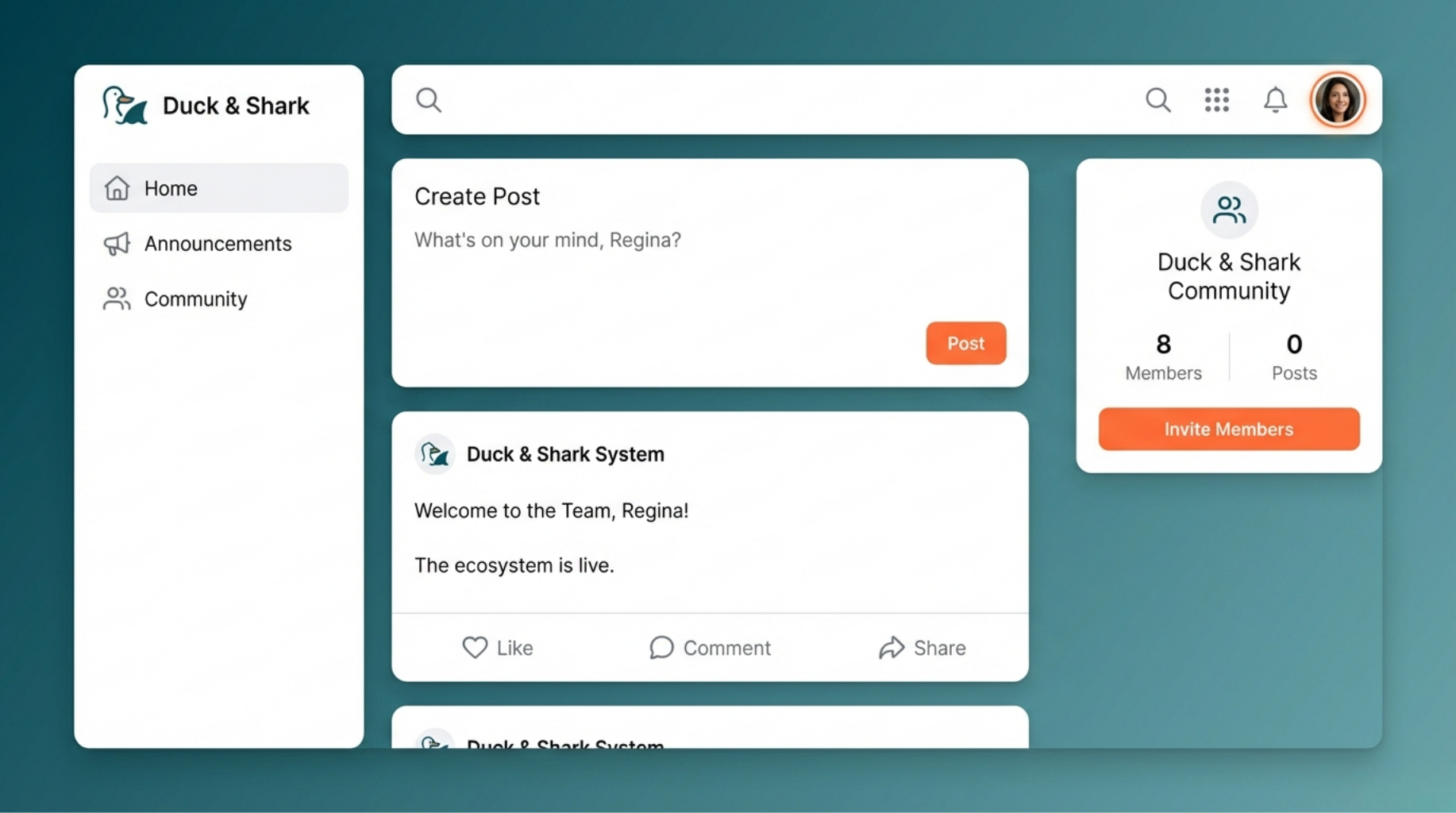
The Top Corner: Look at the icons in the top-right corner of your screen.
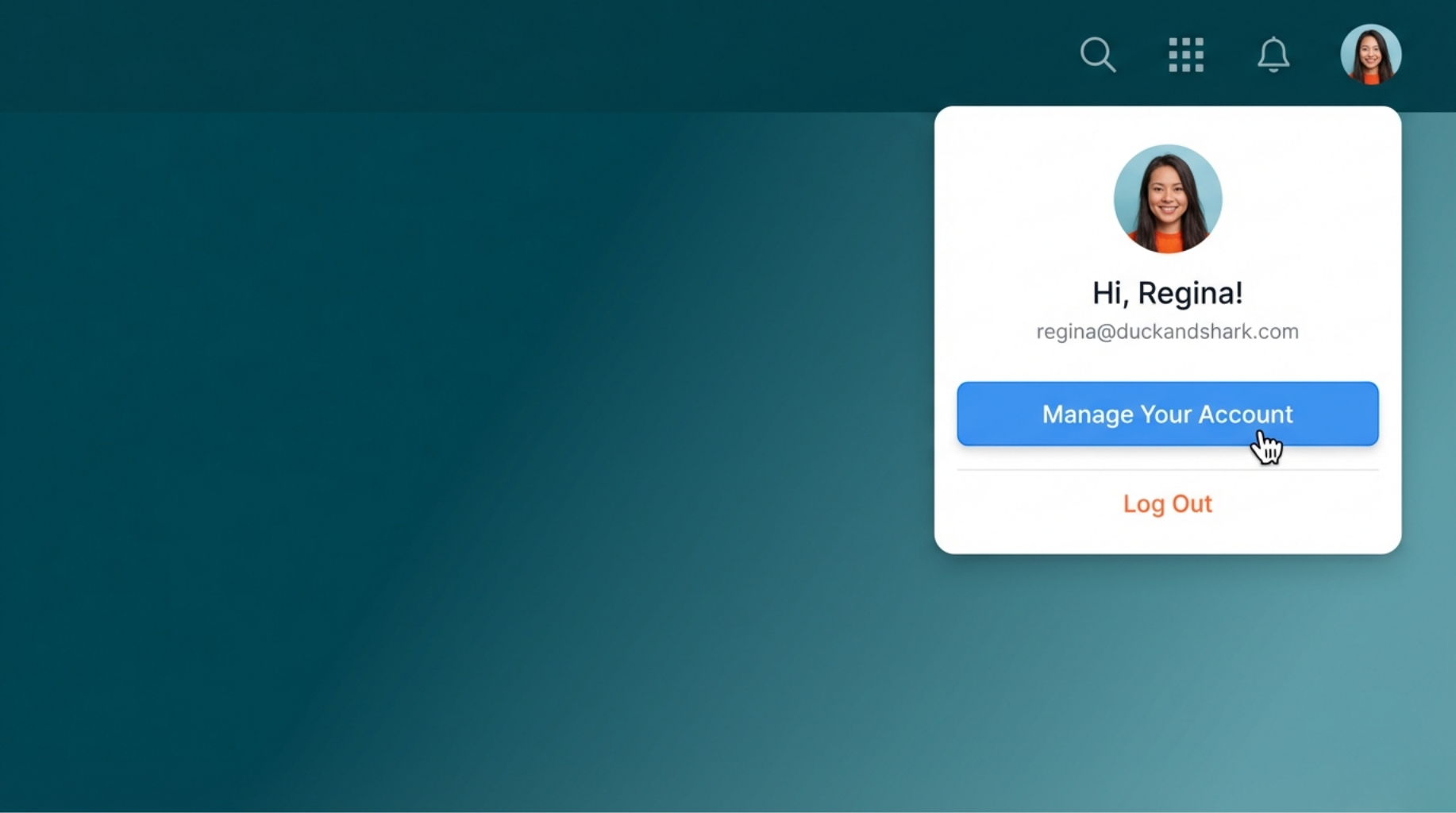
Your Photo: Click your small circle photo to open your menu.
The Pencil: Click the Pencil Icon. This is your "Edit" tool.
Finish Up: Change your photo or bio and click Complete to save.
💡 Quick Tips for Success
Be Fast: The security code expires quickly, so enter it as soon as you get it!
Smile: Use a clear photo so your team can recognize you easily.
Need Help? If you get stuck, just send an email to [email protected].
